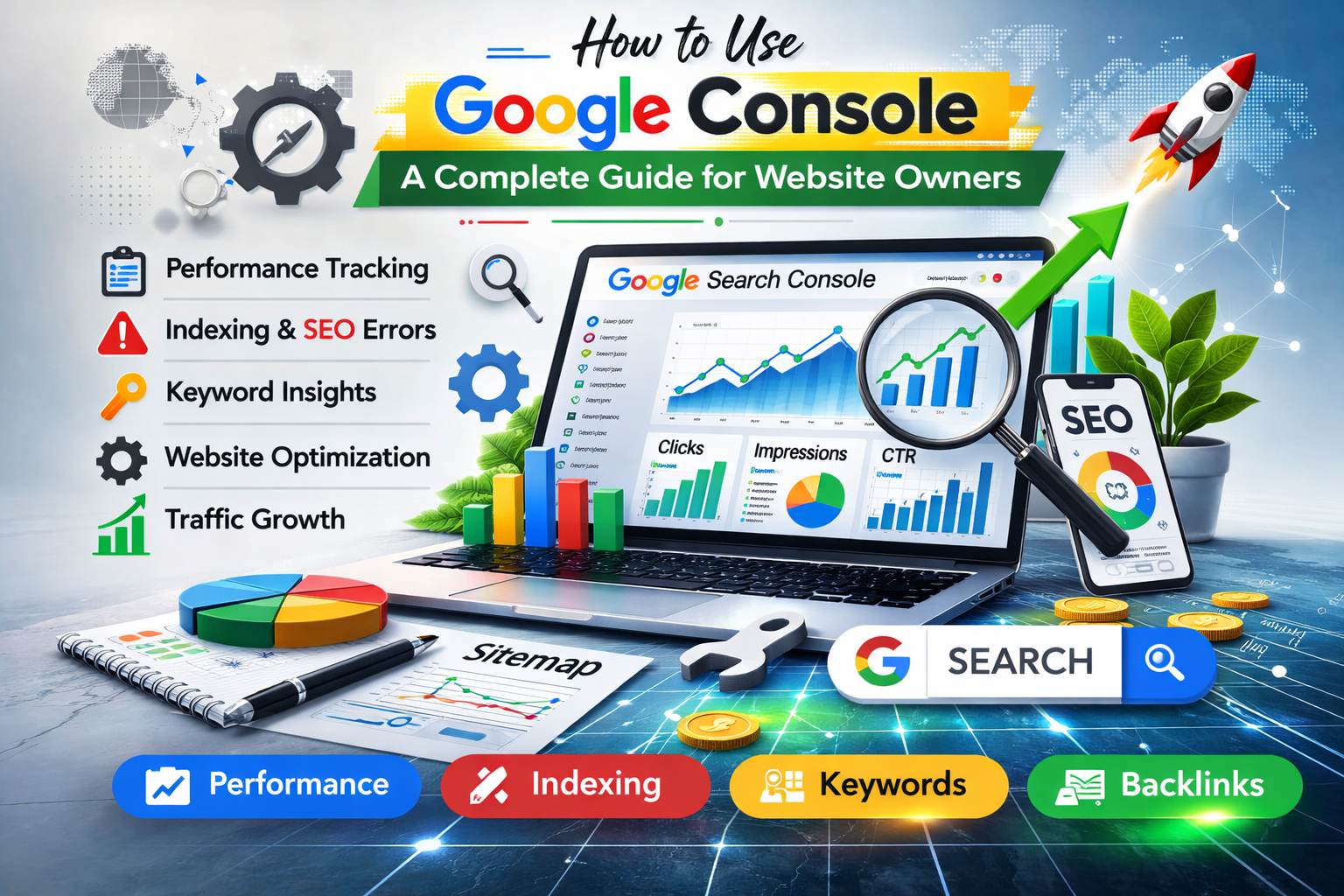
If you want to grow your website’s organic traffic and optimize for search engines effectively, learning how to use Google Search Console is essential. Even if you are a beginner, this free tool provides actionable insights about your website’s performance, indexing, and search visibility. As a Top SEO Expert In Bangladesh, I’ve helped countless businesses leverage Search Console to achieve higher rankings and more clicks.
In this guide, we will explore Google Search Console in detail, including its features, step-by-step setup, and advanced tips for SEO success. By the end, you’ll know exactly how to analyze, optimize, and grow your website using this powerful tool.
What is Google Search Console?
Google Search Console (GSC) is a free tool offered by Google that helps website owners monitor, maintain, and troubleshoot their site’s presence in Google Search results. It provides valuable insights about how Google crawls your website, which keywords bring traffic, and any errors that might affect your ranking.
Key features include:
- Search Performance Analysis – Discover which keywords are driving traffic.
- Index Coverage Reports – Identify pages that are not indexed by Google.
- URL Inspection Tool – Check how Google sees a specific page.
- Enhancement Reports – Monitor structured data, mobile usability, and Core Web Vitals.
Why Use Google Search Console?
Understanding why GSC is important will help you use it effectively:
- Improve Search Visibility – Find high-performing keywords and optimize content.
- Fix Website Issues – Identify and correct crawl errors, broken links, or security problems.
- Enhance User Experience – Mobile usability reports and Core Web Vitals ensure smooth site performance.
- Monitor Backlinks – Track external links pointing to your website.
- Gain Insights for SEO Strategies – Make data-driven decisions to improve organic rankings.
Setting Up Google Search Console
Setting up GSC is straightforward. Follow these steps:
Step 1: Sign in to Google Search Console
Go to Google Search Console and sign in with your Google account. Use an account linked to your website’s domain or Gmail address.
Step 2: Add Your Property
You can add your website as either:
- Domain Property – Tracks all URLs across subdomains and protocols.
- URL Prefix Property – Tracks specific URLs starting with https:// or http://.
Step 3: Verify Your Website
Google requires verification to confirm ownership. Methods include:
- Uploading an HTML file
- Adding an HTML tag to your website
- Using Google Analytics
- Using Google Tag Manager
- DNS record verification
Once verified, GSC will begin collecting data about your site.
Navigating the Google Search Console Dashboard
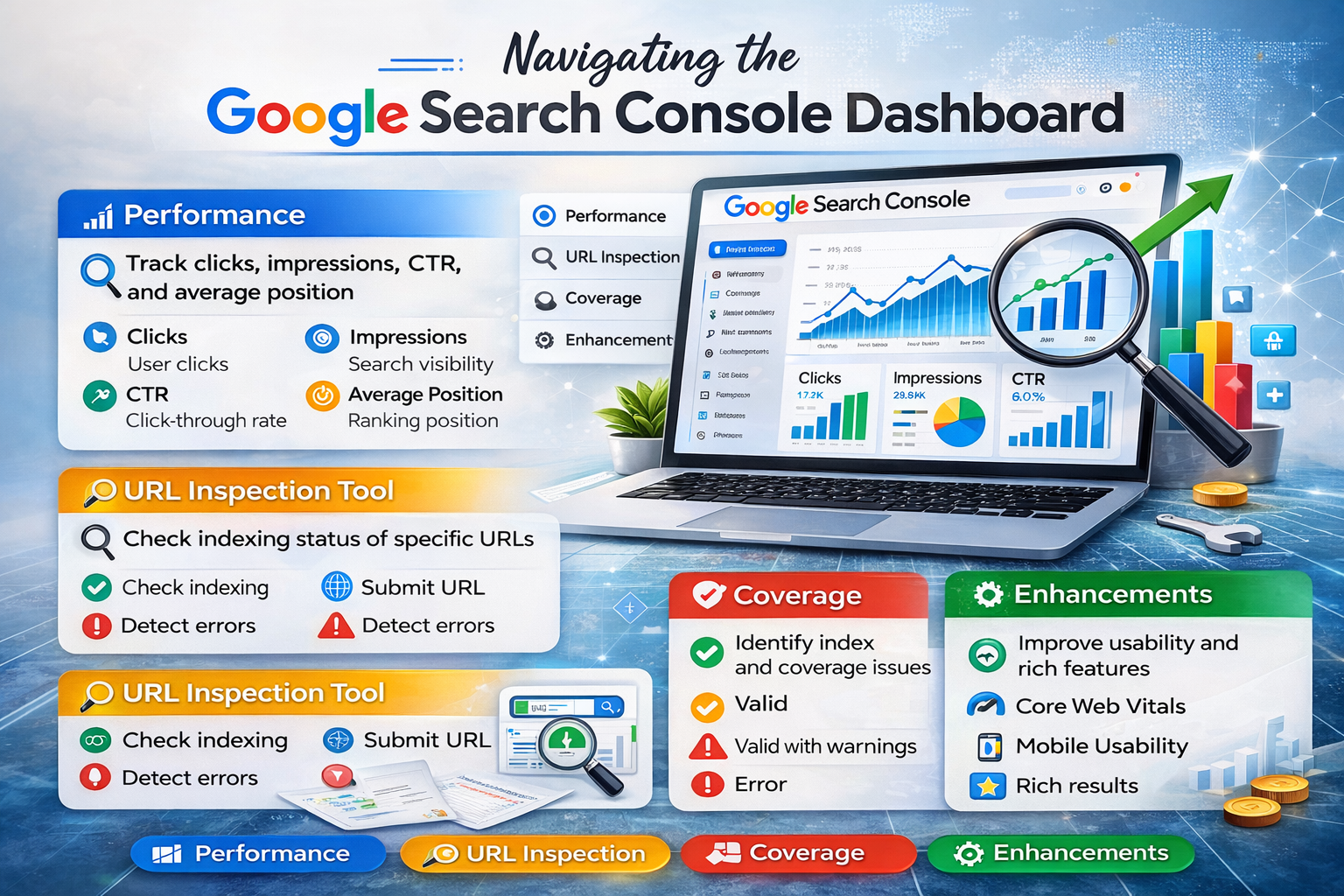
The GSC dashboard provides an overview of your site’s health, performance, and issues. Let’s break down the main sections:
Performance
The Performance Report shows metrics like clicks, impressions, click-through rate (CTR), and average position for your website. This report helps identify which keywords drive traffic and which pages are performing well.
- Clicks – Number of times users clicked your link in Google Search.
- Impressions – How often your page appears in search results.
- CTR – Percentage of impressions that result in clicks.
- Average Position – Average ranking of your URL for a specific keyword.
URL Inspection Tool
This tool allows you to:
- Check indexing status of a specific URL
- Submit a URL for indexing
- Detect errors like mobile usability issues or AMP problems
It’s perfect for ensuring Google correctly crawls and indexes new or updated pages.
Coverage
The Coverage Report provides insights into which pages are indexed and which are not. It categorizes pages as:
- Valid – Successfully indexed pages
- Valid with warnings – Indexed but with issues
- Error – Pages that could not be indexed
- Excluded – Pages intentionally not indexed
Fixing errors in this report ensures your pages appear in search results.
Enhancements
GSC tracks website features that improve user experience and search performance. Key enhancement reports include:
- Core Web Vitals – Measures page speed, interactivity, and layout stability.
- Mobile Usability – Checks mobile responsiveness and usability.
- Rich Results – Monitors structured data for products, articles, or FAQs.
How to Use Google Search Console for SEO
Google Search Console is a goldmine for SEO insights. Here’s how you can use it:
1. Optimize for Keywords
Check the Performance Report to see which queries bring traffic. Identify:
- High CTR keywords to expand content
- Low CTR pages to improve meta titles and descriptions
2. Identify Indexing Issues
Use the Coverage Report to find pages not indexed. Common reasons include:
- Noindex tags
- Crawl errors
- Duplicate content
Fix these to ensure all important pages appear in search results.
3. Improve Click-Through Rate
GSC shows pages with many impressions but low clicks. Strategies include:
- Rewrite meta descriptions to be more enticing
- Add structured data for rich snippets
- Optimize title tags for clarity and relevance
4. Monitor Backlinks
GSC shows websites linking to yours. High-quality backlinks boost domain authority and rankings. Analyze:
- Which pages get the most backlinks
- New and lost links over time
5. Track Mobile and Page Experience
Check Core Web Vitals and Mobile Usability Reports to:
- Improve page speed
- Fix mobile-friendly issues
- Reduce layout shifts and errors
Advanced Tips for Google Search Console Users
Once you’re comfortable with GSC basics, explore these advanced strategies:
1. Analyze Search Intent
Look at the queries bringing traffic. Classify them as:
- Informational – Users seeking answers
- Navigational – Users looking for a brand
- Transactional – Users ready to buy
Tailor content to meet these intents for better rankings.
2. Use GSC Data with Google Analytics
Combine GSC and Google Analytics for a deeper understanding of:
- User behavior on landing pages
- Bounce rates and session duration
- Conversion tracking
This creates a complete picture of website performance.
3. Track Performance of Rich Results
Structured data can help your content appear as:
- FAQs
- Product reviews
- Event snippets
GSC’s Enhancements Section shows errors in structured data, helping you fix issues and gain rich result visibility.
4. Submit Sitemaps
Submitting a sitemap ensures Google indexes all important pages. Steps:
- Navigate to Sitemaps
- Enter your sitemap URL (e.g., https://example.com/sitemap.xml)
- Click “Submit”
Regularly check for sitemap errors in the Coverage Report.
5. Monitor Security Issues
GSC alerts you to:
- Malware detection
- Hacked content
- Phishing attempts
Acting fast prevents search ranking penalties and protects users.
Common Google Search Console Errors and How to Fix Them
Here are frequent GSC errors and solutions:
| Error | Cause | Solution |
| 404 Not Found | Broken links | Redirect or fix links |
| Server Error (5xx) | Server downtime | Check hosting/server logs |
| Redirect Error | Wrong redirects | Ensure proper 301 redirects |
| Submitted URL Blocked | Robots.txt blocking | Update robots.txt to allow crawling |
| Duplicate Content | Multiple similar pages | Use canonical tags |
How Often Should You Check Google Search Console?
For optimal results:
- Weekly – Performance metrics, clicks, impressions
- Monthly – Core Web Vitals, mobile usability, coverage errors
- Quarterly – Structured data, sitemap updates, backlink analysis
Consistent monitoring ensures early detection of issues before they impact rankings.
Benefits of Using Google Search Console
- Improved Website Visibility – Identify keywords and pages with high potential.
- Better SEO Decisions – Use data to prioritize content updates.
- Enhanced User Experience – Fix mobile usability and speed issues.
- Increased Organic Traffic – Optimize underperforming pages for clicks.
- Prevent Search Engine Penalties – Detect security or indexing issues early.
Common Mistakes to Avoid in Google Search Console
Even experienced users make mistakes. Avoid these pitfalls:
- Ignoring Errors: Never overlook indexing, mobile usability, or Core Web Vitals errors.
- Not Using URL Inspection: Check pages regularly to ensure they are indexed.
- Focusing Only on Keywords: User experience and site structure matter too.
- Submitting Poor Sitemaps: Ensure your sitemap is clean and updated.
- Ignoring Backlinks: Link data helps improve internal linking strategy.
Conclusion
Google Search Console is an essential tool for every website owner and SEO professional. By monitoring performance, fixing errors, and optimizing pages, you can increase organic traffic, improve user experience, and achieve better rankings. Partnering with a Top SEO Expert In Bangladesh can help you maximize the potential of GSC while implementing a comprehensive SEO strategy.
Start using Google Search Console today to take control of your website’s performance and unlock new opportunities for growth.
Frequently Asked Questions About Google Search Console
Q1: Is Google Search Console free?
Yes, GSC is 100% free and provides powerful insights without any subscription fees.
Q2: Can I track keywords with GSC?
Yes, the Performance Report shows queries, clicks, impressions, and ranking positions.
Q3: How do I fix crawl errors?
Use the Coverage Report to identify errors, then update your pages, remove broken links, or fix redirects.
Q4: Does GSC improve SEO directly?
Not directly. GSC provides insights to guide SEO actions like content optimization, technical fixes, and user experience improvements.
Q5: How long does it take for GSC to show data?
Typically, data appears within 2–3 days after site verification.